You pick up your iPhone, look at it, and nothing happens. It shakes, asks for your passcode, and Face ID just won’t recognize you. Sometimes it’s a smudge or a setting. Sometimes it’s the hardware.
Quick answer: Most Face ID problems come from something blocking the sensors at the top of the screen, a setting that changed, or a software glitch. Try the 7 fixes below first. If your iPhone says “Face ID is not available,” or it stopped after a drop or a screen repair, the sensors likely need a repair.
Why Face ID stops working
Face ID uses the TrueDepth camera at the top of your screen: a dot projector, an infrared camera and a flood illuminator that map your face in 3D. If any of these can’t see you clearly, or can’t talk to the rest of the phone, Face ID fails. The most common reasons:
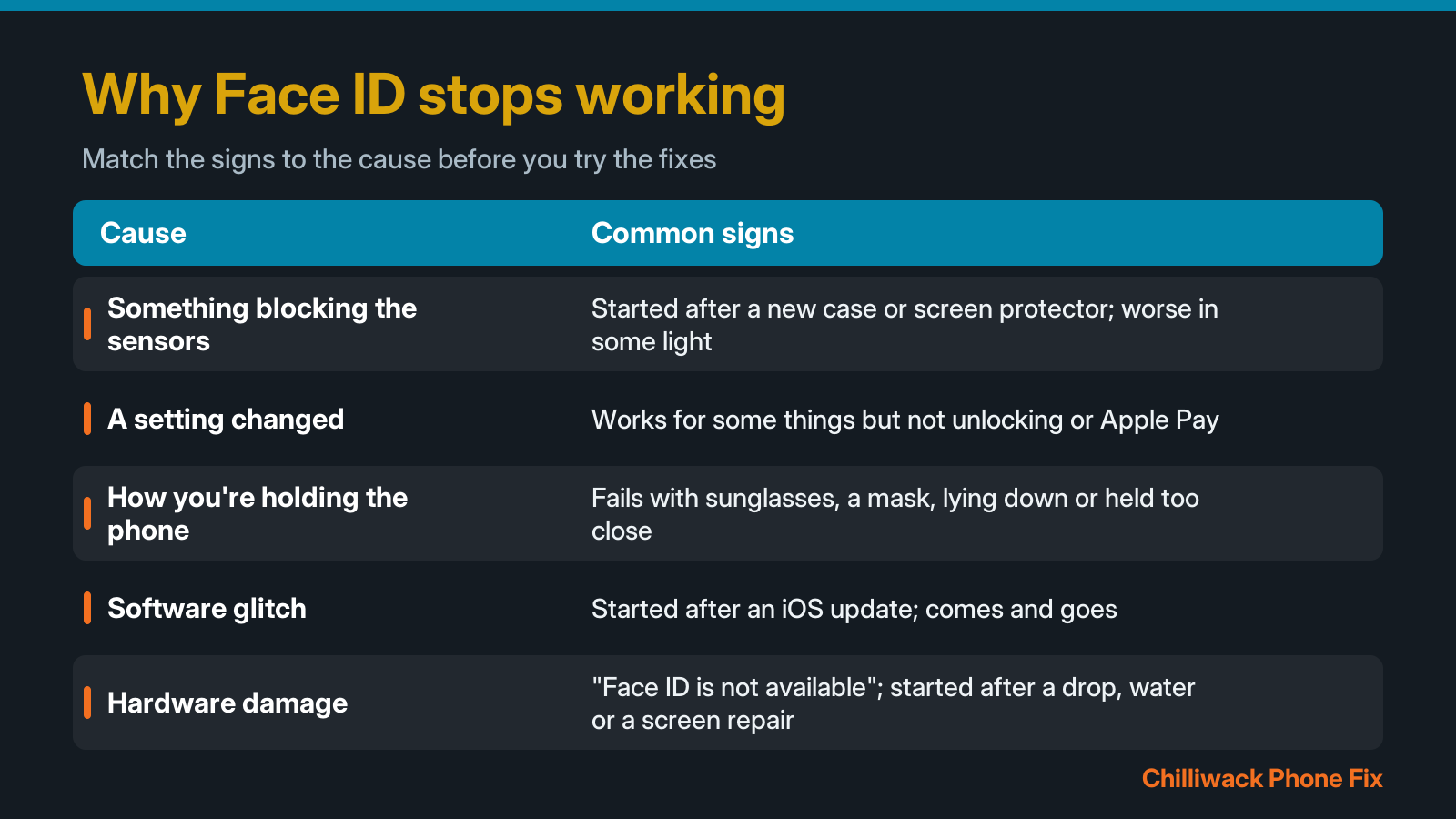
Work through the fixes in order. The first four take less than a minute each.
Is Face ID actually broken?
Before troubleshooting, check whether your iPhone is simply asking for your passcode on purpose. For security, it always requires the passcode when:
• It has just been turned on or restarted
• It hasn’t been unlocked for more than 48 hours
• Face ID failed to match your face five times in a row
• The passcode hasn’t been used in 6.5 days and Face ID hasn’t unlocked it in the last 4 hours
• You used Emergency SOS, or the phone was locked remotely
In these cases, entering your passcode once gets Face ID working again. If it keeps failing after that, move on to the fixes.
7 fixes to try when Face ID stops working
1. Clean the top of the screen and remove anything blocking it
The TrueDepth camera sits in the notch or Dynamic Island at the top of the screen. Wipe that area with a soft, dry cloth. Then check for anything covering it:
• A screen protector that’s cracked, bubbled or doesn’t have a proper cutout
• A case with a raised lip that sits over the top edge
• Dust, makeup or skin oil on the glass
If Face ID started failing right after a new case or protector, take it off and test again. Bright sunlight behind you can also confuse the sensors, so test indoors too.
2. Check your Face ID settings
Go to Settings > Face ID & Passcode and enter your passcode. Make sure Face ID is set up, and that iPhone Unlock is turned on, along with anything else you use it for, such as Apple Pay, Password AutoFill or the App Store. Face ID needs an iPhone X or newer; older models with a Home button use Touch ID instead.
3. Check how you’re holding your iPhone
Face ID works best with the phone about 25 to 50 cm (10 to 20 inches) from your face.
• Sunglasses: some block the infrared light Face ID uses. Try without them. Heavy makeup can have the same effect.
• Masks: turn on Face ID with a Mask in Face ID settings (iPhone 12 and later with iOS 15.4 or later). It works in portrait only, and your eyes must stay uncovered.
• Sideways: Face ID works in landscape on iPhone 13 and later with iOS 16 or later; older models need portrait. Keep your fingers off the top edge when holding it sideways.
• Eyes: with Require Attention on, your eyes must be open and looking at the screen.
4. Restart your iPhone
A quick restart clears small software glitches. If it’s frozen, force restart it: press and release Volume Up, press and release Volume Down, then hold the Side button until the Apple logo appears.
5. Update iOS
Some Face ID bugs are fixed in updates. Go to Settings > General > Software Update and install any available update. If your iPhone also feels slow or dies early, look for these signs your iPhone battery is wearing out, since an older battery can make the whole phone feel sluggish.
6. Set up an alternate appearance
If you often wear glasses, a hat or work gear, Face ID may struggle to match both looks. In Settings > Face ID & Passcode, tap Set Up an Alternate Appearance and scan your face with the second look. Face ID also learns your face over time, so you may need your passcode a little more often for a few days.
7. Reset Face ID and set it up again
If it still fails, start fresh. In Settings > Face ID & Passcode, tap Reset Face ID, then Set Up Face ID. Scan in good light, without sunglasses, and move your head slowly in a full circle.
Quick test: if setup finishes, the problem was software, and Face ID should work again. If setup won’t finish, keeps asking you to move your face, or says Face ID is not available, it’s a hardware problem. A factory reset (after a backup) is a last resort; if setup still fails after that, the sensors need a repair. Don’t keep resetting over and over, since it won’t fix damaged hardware.
Signs it’s a hardware Problem
“Face ID is not available. Try setting up Face ID later.”
This message usually means your iPhone can’t communicate with the TrueDepth camera. A restart and an iOS update are worth trying first. If the message comes back, or the Set Up Face ID button is greyed out, the sensors or their connection are likely damaged.
Face ID stopped working after a drop
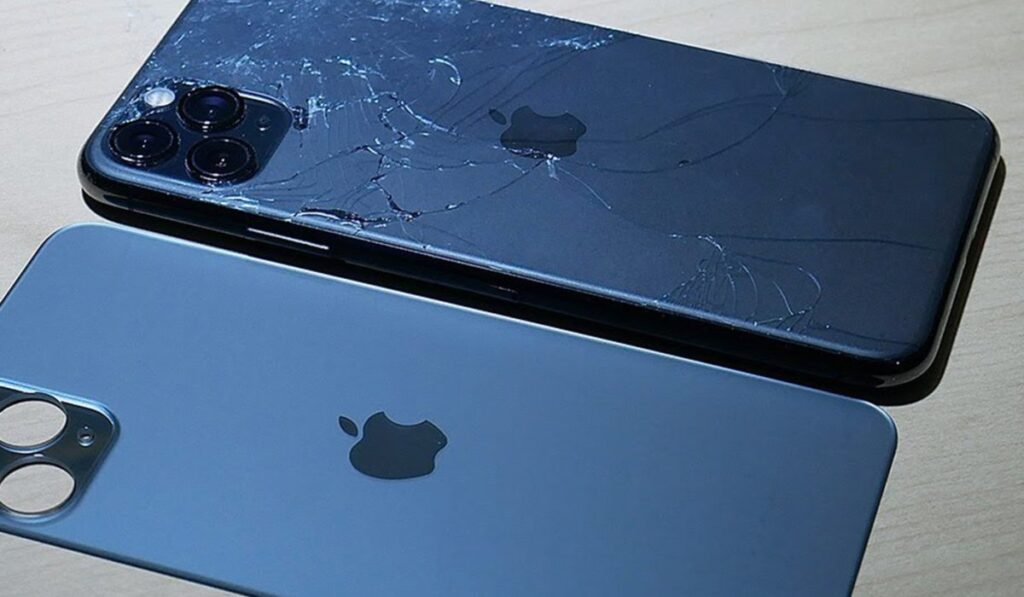
The TrueDepth parts are tiny and fragile. A hard fall can shift them or damage the thin cable that connects them, even when the screen looks fine. A drop that leaves you with cracked iPhone back glass can also jolt the parts inside, so check Face ID after any repair to the back as well.
Face ID stopped working after a screen replacement
Some Face ID parts sit on the earpiece assembly at the top of the screen. During a screen replacement, that assembly has to be moved carefully from the old screen to the new one. If it’s damaged or not reconnected properly, Face ID or the proximity sensor can stop working. A good shop tests Face ID before handing your phone back.
Face ID stopped working after water exposure
Moisture inside the phone can corrode the TrueDepth connections. If your iPhone got wet and Face ID fails along with other problems, like a fuzzy earpiece or a dim screen, get it checked soon, before corrosion spreads.
When it’s time for a repair
If none of the 7 fixes worked, or you saw any of the signs above, a home fix won’t solve it. Face ID parts are paired to your iPhone’s main board, so not every fault can be fixed by swapping a part. Some issues, like a damaged connecting cable or an earpiece assembly that was moved badly, can often be repaired. Damage to the dot projector itself is harder. Don’t open the phone yourself: Apple warns that only a trained technician should service Face ID, because a poor repair or non-genuine laser parts can be hazardous to your eyes and skin.
The best first step is a proper diagnosis. A shop that offers complete mobile repair in Chilliwack can test the TrueDepth camera, the cable and the earpiece assembly, then tell you honestly what can be fixed before you spend anything.
Getting Face ID checked in Chilliwack
If Face ID still won’t work, bring your iPhone in for a free check. Here’s what happens:
1. Free diagnosis. We test the TrueDepth camera, its cable and the earpiece assembly to find what failed.
2. Honest answer. We tell you whether it can be repaired before any work begins.
3. Clear quote. If a repair is possible, you know the price up front.
4. Full test. We check Face ID, the proximity sensor and the front camera before handing your phone back.
You’ll find us at our Southgate Mall store on Yale Road, close to downtown and Chilliwack Hospital, so you can shop while we check your phone.
Frequently Asked Questions
Why has Face ID suddenly stopped working?
The most common causes are a smudge or screen protector covering the sensors, a setting that changed, or a software glitch after an update. If it stopped after a drop, water or a screen repair, the TrueDepth camera may be damaged.
How do I fix iPhone Face ID not working?
Clean the top of the screen, check Settings > Face ID & Passcode, restart your iPhone and install any iOS update. If that doesn’t help, reset Face ID and set it up again. If you see “Face ID is not available,” the sensors likely need a repair.
Why is my iPhone suddenly not accepting my Face ID?
Your iPhone asks for your passcode after it restarts, after five failed Face ID attempts, or if it hasn’t been unlocked for 48 hours. If it keeps rejecting your face in normal use, try adding an alternate appearance or resetting Face ID.
Face ID still not working?
Don’t keep typing your passcode every time. Call us at 604-991-3699 or visit our Southgate Mall store for a free Face ID check. We’ll tell you exactly what’s wrong and what can be fixed before any work begins.