
You plug it in, and nothing happens. Or the lightning bolt flickers on and off, or it charges so slowly the percentage barely moves. A Samsung phone not charging is one of the most common problems we see, and the good news is that many causes take minutes to fix at home. Work through these quick checks in order, from the easiest to the more serious, and you’ll know whether it’s a cable, a setting, the port or the battery.
1. Rule out the cable and charger first
Most charging problems start outside the phone. Cables fray inside where you can’t see, and cheap adapters often can’t deliver enough power.
- Test the charger on another device. If it won’t charge that one either, the charger or cable is the problem.
- Swap one part at a time. Try a different cable with the same adapter, then a different adapter, so you know which part failed.
- Try a different wall socket. Power bars and car chargers are the usual weak link.
- Use a Samsung-approved charger. Samsung warns that low-quality or non-approved chargers can cause slow charging or the charger connecting and disconnecting.
2. Restart the phone
A software glitch can stop the phone from recognising a charger. If there’s still some battery left, press and hold the Power and Volume Down buttons together until the phone restarts. Then plug it in again.
If the battery is completely flat, leave it plugged in for at least 30 minutes before you try to turn it on. A deeply drained battery can take a while to show any sign of life.
3. Check for the “Moisture detected” warning
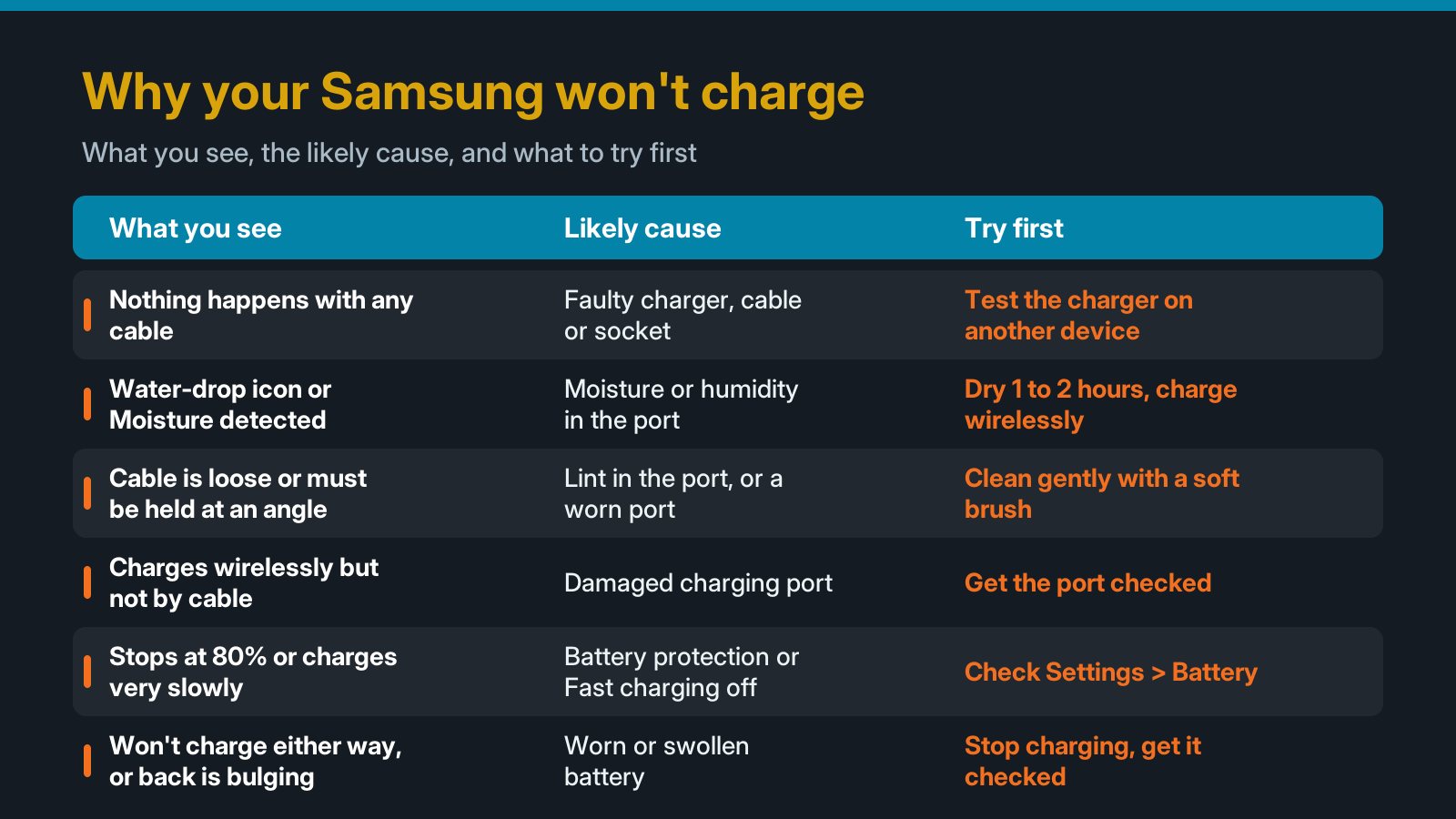
If you see a water-drop icon or a “Moisture detected” message, your Samsung is protecting itself. It won’t charge through the port while it senses moisture there, to prevent corrosion.
What to do:
- Unplug the cable right away.
- Wipe the phone dry and gently shake it 5 to 10 times with the port facing down.
- Leave it to dry for 1 to 2 hours in a dry room. Water normally evaporates from the port on its own in that time.
- Charge wirelessly while you wait, if your phone supports it. Wireless charging isn’t affected by moisture in the port.
- Restart the phone once it’s dry, and try the cable again.
Don’t use a hair dryer, don’t put the phone in rice, and never push a cotton swab or anything else into the port.
The warning can appear even if your phone never touched water. Humidity, such as charging in a bathroom or kitchen, can set it off. If it keeps coming back after the phone has fully dried, the cause may be corrosion on the port’s pins or a software glitch.
4. Clean the charging port
Pocket lint packs into USB-C ports over months, until the cable can’t sit all the way in. Shine a torch into the port. If you see grey fluff, that’s likely your problem.
- Turn the phone off first.
- Use a soft, dry brush or a wooden toothpick, very gently, along the sides of the port. Never use metal, like a pin or paper clip.
- Check the fit. A cable should click in and sit snugly. If it wobbles or falls out easily, the port itself may be worn.
5. Check your charging settings
Sometimes the phone is charging, just not the way you expect.
- Fast charging: Go to Settings > Battery > Charging settings and make sure Fast charging is on. Fast charging also needs a fast charger. A standard one will charge slowly no matter what.
- Battery protection: If your phone stops at 80% or 85%, you’ve probably turned on battery protection. It’s a feature, not a fault. You’ll find it in the same Battery settings.
6. Let the phone cool down (or warm up)
Samsung phones slow or pause charging when they’re too hot or too cold. Heavy gaming or video while charging, a hot car, or a cold winter morning can all do it. Close your apps, take the phone out of its case, and charge it at room temperature.
7. Run Samsung’s own charging test
Samsung phones have a built-in diagnostic tool that most people never use. Open the Samsung Members app, tap Support, then Phone diagnostics. Run the Cable charging, Wireless charging and Battery status tests. If a test fails, you’ll know which part to look at.
8. Worn or damaged charging port
If you’ve tried a working cable, the port is clean and dry, and the phone still won’t charge, the port may be worn out or damaged. Common signs:
- You have to hold the cable at a certain angle to charge.
- The cable feels loose or falls out.
- Charging connects and disconnects over and over.
- The phone charges wirelessly but not with a cable.
That last one is a strong clue. If wireless charging works, the battery is fine and the problem is in the port. On most Samsung phones the port sits on a small separate board, so a charging port replacement chilliwack is usually a quick repair that doesn’t touch your data.
9. The battery may be the problem
If the phone won’t charge by cable or wirelessly, the battery is the likely cause, especially on a phone that’s more than two or three years old. Watch for these signs:
- The percentage jumps around, or the phone shuts off at 20% or 30%.
- It drains much faster than it used to.
- It gets hot while charging, even when you’re not using it.
- The back is lifting, or the screen is being pushed up.
A swollen battery is a safety risk. If the back or screen is bulging, stop charging the phone and don’t press on it. Getting a samsung battery replacement in chilliwack is much safer than waiting for it to get worse.
Still not charging? Here’s what to try next
If you’ve worked through every check above, the problem is most likely inside the phone: the port, the battery, or the charging circuit on the board. A proper diagnosis will tell you which one, so you don’t pay to replace the wrong part.
Bring it to Chilliwack Phone Fix, a samsung repair store in chilliwack on Yale Road, or call 778-201-9242. We’ll test the port, battery and charging circuit and tell you exactly what’s wrong before any work begins.
A phone that won’t charge only gets less reliable from here. Get it checked before it stops turning on altogether.
Frequently asked questions
Why is my Samsung phone plugged in but not charging?
The most common causes are a faulty cable or adapter, lint in the charging port, moisture in the port, or the phone being too hot or cold. Try a different cable and adapter first, then clean and dry the port. If it still won’t charge, the port or battery may need replacing.
How do I get rid of the Moisture detected warning on my Samsung?
Unplug the cable, gently shake the phone with the port facing down, and let it dry for 1 to 2 hours. You can charge wirelessly while you wait. If the warning keeps coming back once the phone is dry, the port may be corroded and should be checked.
How do I know if my Samsung charging port or battery is bad?
If the phone charges wirelessly but not with a cable, the charging port is the likely problem. If it won’t charge either way, shuts off at a high percentage, or the back is bulging, the battery is the likely cause. The Samsung Members app can test both.
Phone still won’t charge?
Don’t wait until your phone won’t turn on. Call 778-201-9242 or visit our Yale Road store for a free charging test before any work begins.